Custom Task States in Link
Understand the different state types so you know which ones to choose when designing your workflow process
State Types
There are four state types in Link:
- To Do: Used before work has started. Tasks in a To Do state do not accumulate Days in State.
- In Progress: Used when work is actively progressing. Tasks accumulate Days in State, helping you understand how long they have remained at each stage of the workflow.
- On Hold: Used when work is delayed by something outside the accountant’s control. Tasks still accumulate Days in State for visibility, but targets cannot be set for On Hold states. Time spent in these states is also excluded from the accountant’s turnaround reporting.
- Completed: Used when the work is finished. When an accountant moves a task into a Completed state, they are shown confetti to celebrate the win, the task moves to the bottom of their list, and any remaining estimated time is returned to their available capacity.
How shared states work
When a task is assigned to multiple people, its state is generally shared. If one person moves the task to another state, it updates for everyone to reflect the most recent change.
Completed states work differently. When someone completes a task, they see the celebration and receive the remaining time back into their available capacity. The task is not marked as completed for anyone else assigned to it, as they may still have work to finish.
Once each person has completed their part of the task, changes between Completed states are shared again across all completed instances of the task.
Moving between completed states
Tasks can move between Completed states without being reactivated or changing the month in which they are reported as completed.
This allows you to create post-completion workflows, such as review or invoicing stages, without reopening the accounting work.
Setting up custom task states
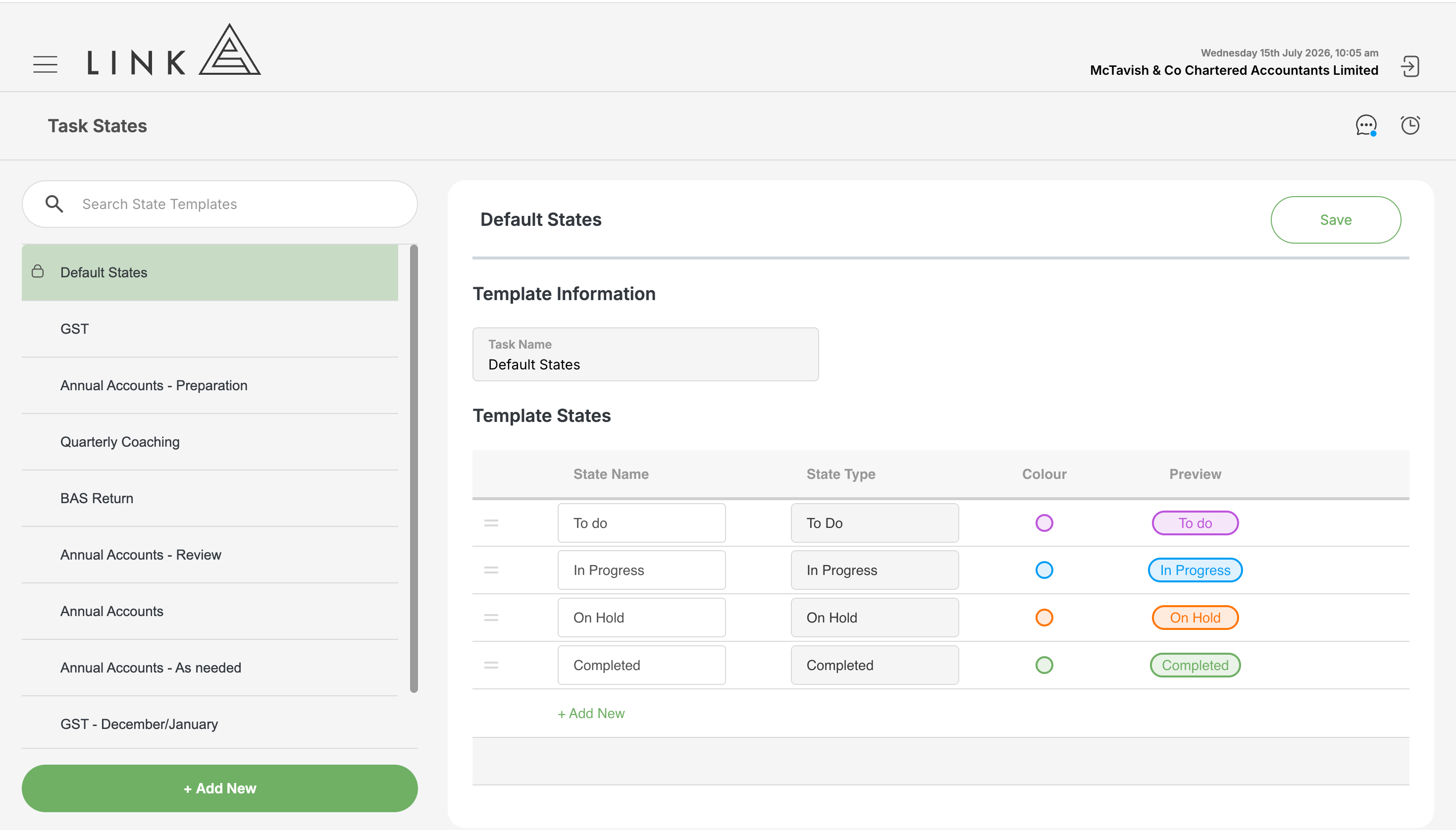
Custom task states can be configured by navigating to HQ > Task States while logged in.
From there, select Add New to create a Task State Template for a specific type of task, or update the default task states.
Task states follow three levels of hierarchy:
- Task Name + Label
- Task Name
- Default
More specific levels override the states configured at broader levels. For example, states set for a Task Name + Label will override those set for the Task Name , which will override the Default states.