Allocating Work in Link
Allocate work, manage team capacity, and publish updates to Xero with confidence.
Introduction
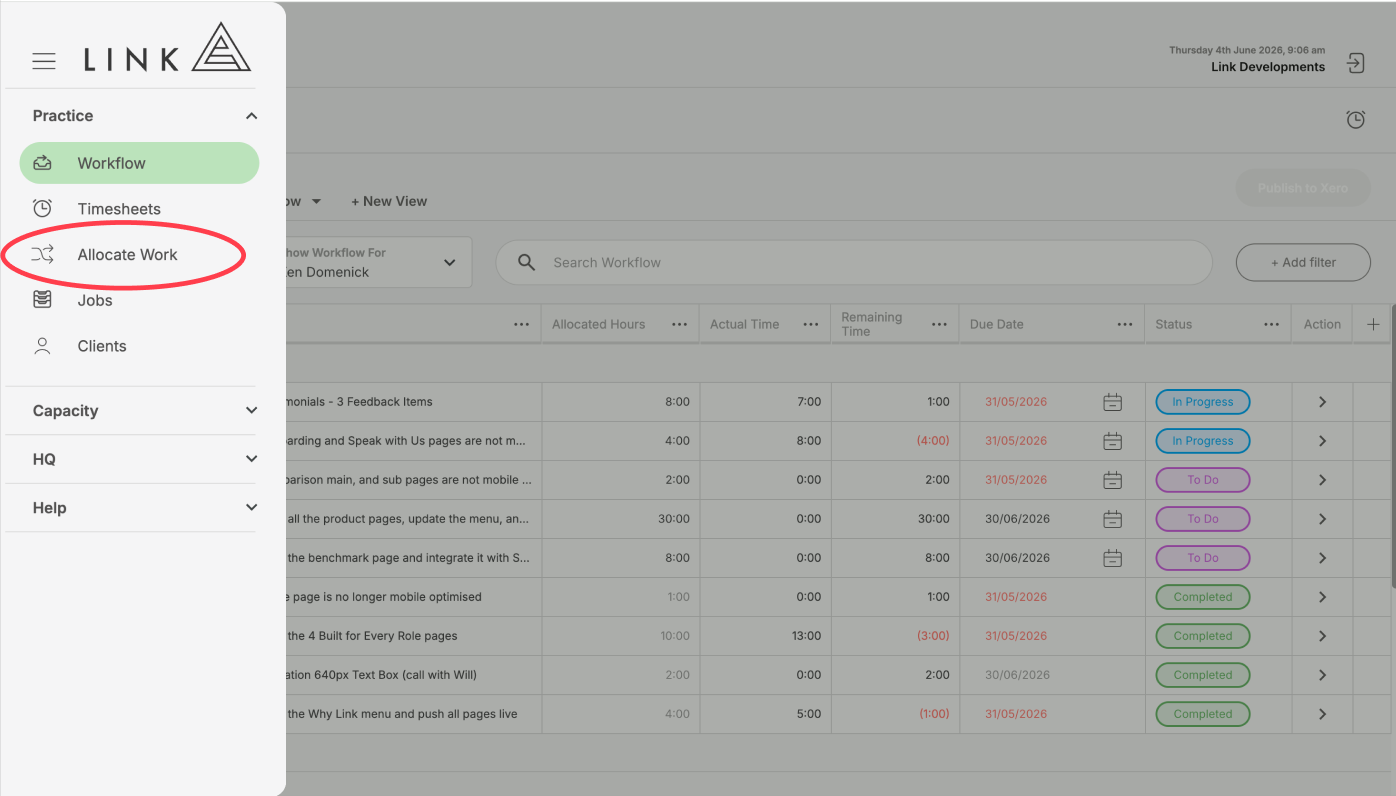
Work can be allocated in the Allocate Work module in Link, which is found in the menu under Practice > Allocate Work.
What makes a task scheduled?
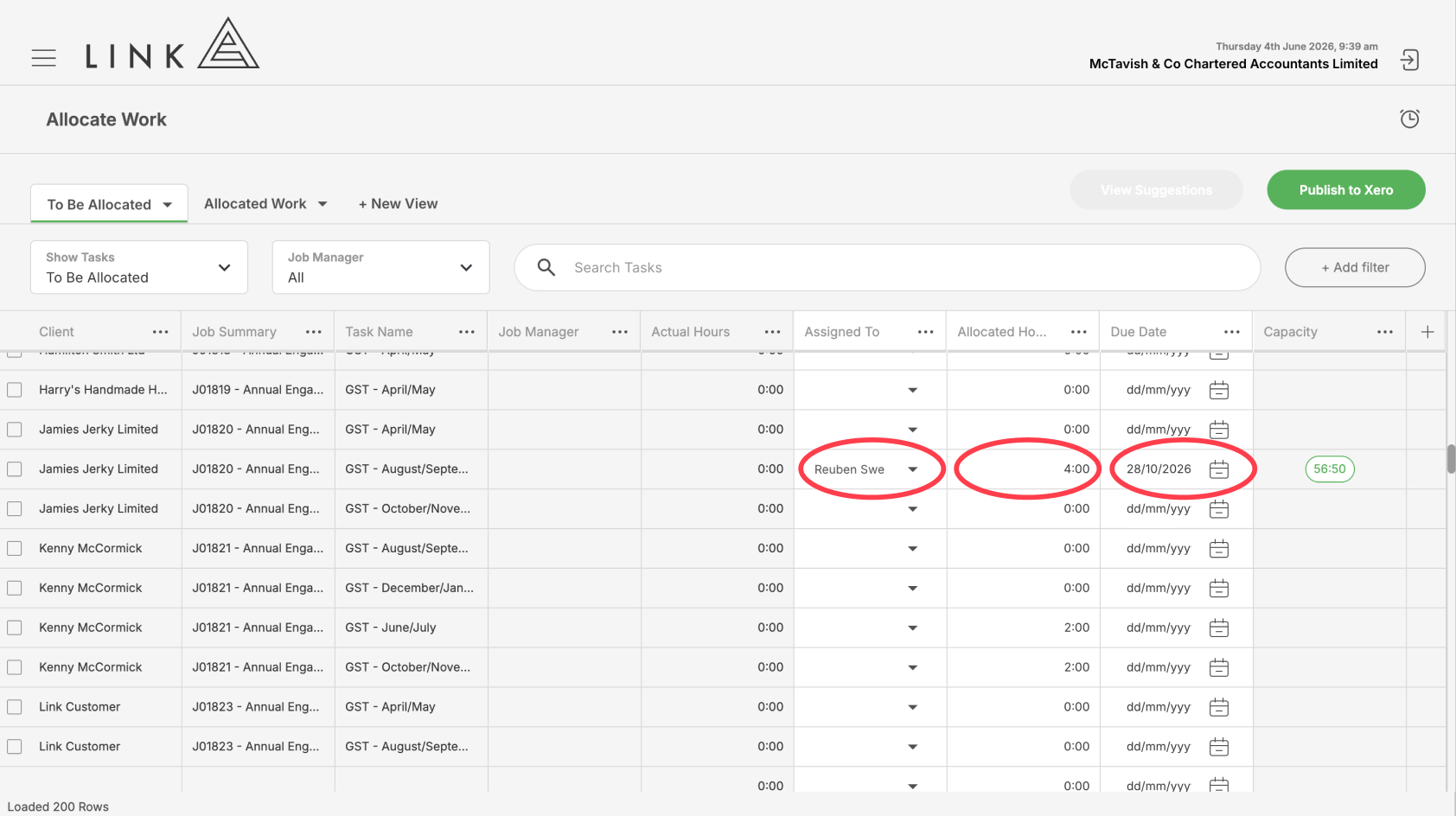
A task is considered scheduled when it contains three elements:
- Assigned To (the person the task is allocated to)
- Allocated Hours
- Due Date
Once these three elements are added to a task you will see a capacity pill that relates to the person you have assigned the task to. This is the available capacity they have for the month you have scheduled the task to. This allows you to see if this person has available capacity, or is overallocated for the month.
Non Schedulable Tasks
Not all tasks need to be scheduled. Tasks such as general queries do not have a due date, or need to be allocated to a specific person. They exist for tracking time and potentially for billing, but they do not have a deadline or a deliverable. Tasks of this nature can be flagged as a Non Schedulable task in settings. This reduced the number of tasks you will see in your unscheduled task list to only the ones that need to be scheduled.
Scheduling Tasks to Multiple People
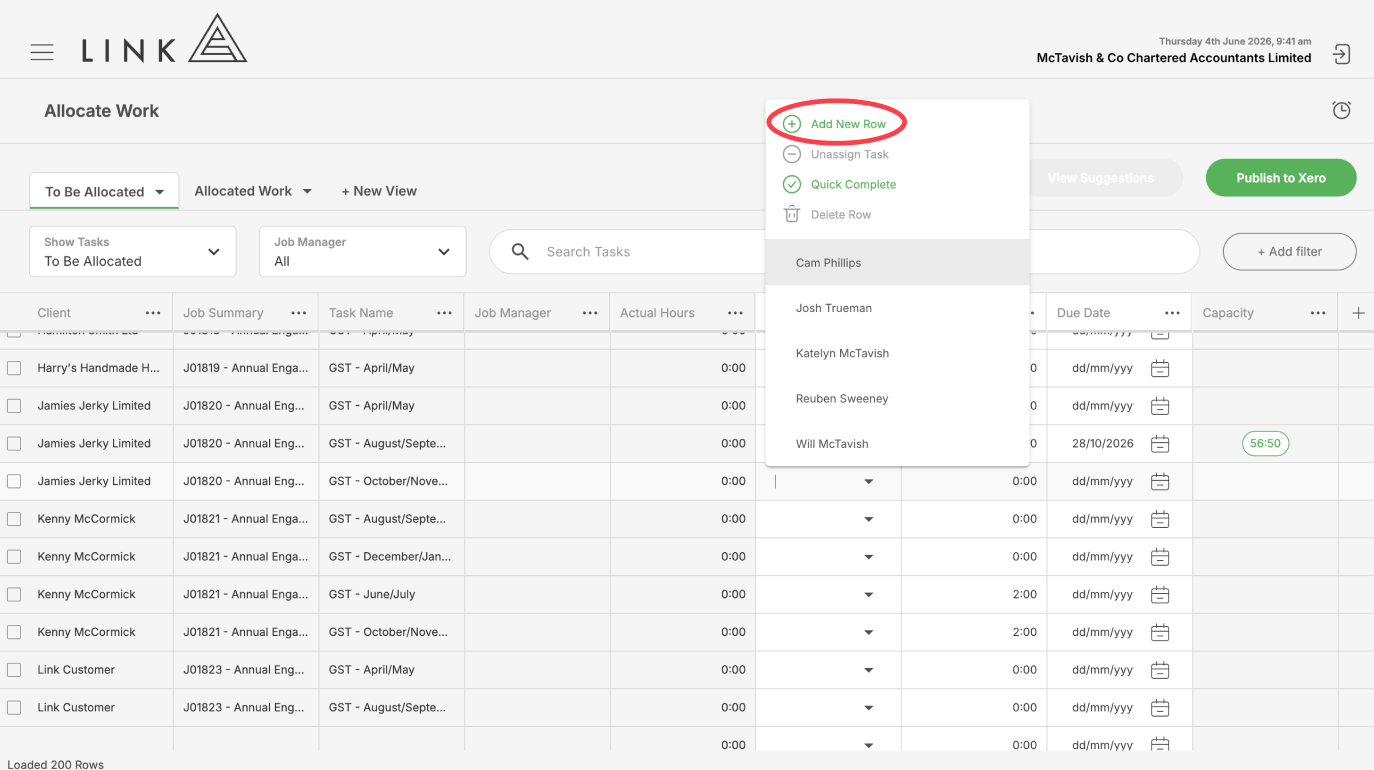
Tasks can be scheduled to multiple people. By default each task will have a single row that can be assigned to a person. To assign the task to multiple people, click the dropdown arrow in the Assign To box which will reveal and extended list that includes:
- Add New Row
- Quick Complete
- Delete Allocation
To allocate the task to a second person, select ‘Add New Row’. This will replicate the row allowing you to assign the task to another person. This action can be repeated as many times as required.
The task will share the same due date, but allocated hours and the tasks states will remain independent between people. This means each person added to the task will have their task added to their workflow list and have control over their own tasks status. Only once all task statues have been completed will the task be completed in Xero Practice Manager.
Quick Complete
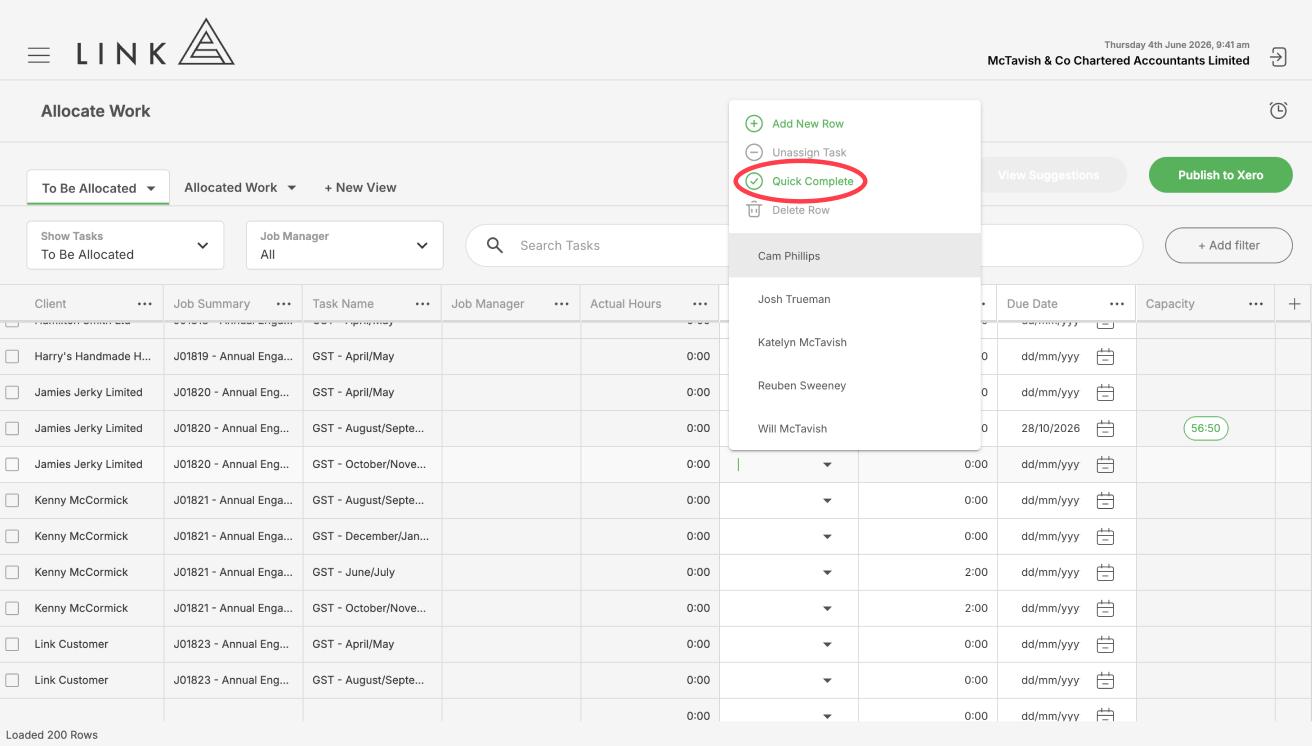
Sometimes tasks shown in Unscheduled Tasks do not need to be scheduled. If this task in question never needs to be scheduled (such as general queries), it is best to flag this task as a Non Schedulable task in Settings. If the task usually is scheduled, but isn’t required on this specific job, you can quick-complete the task. This will mark the task as complete in both Link and Xero Practice Manager and remove the task from the Unscheduled Task list.
Multi Select
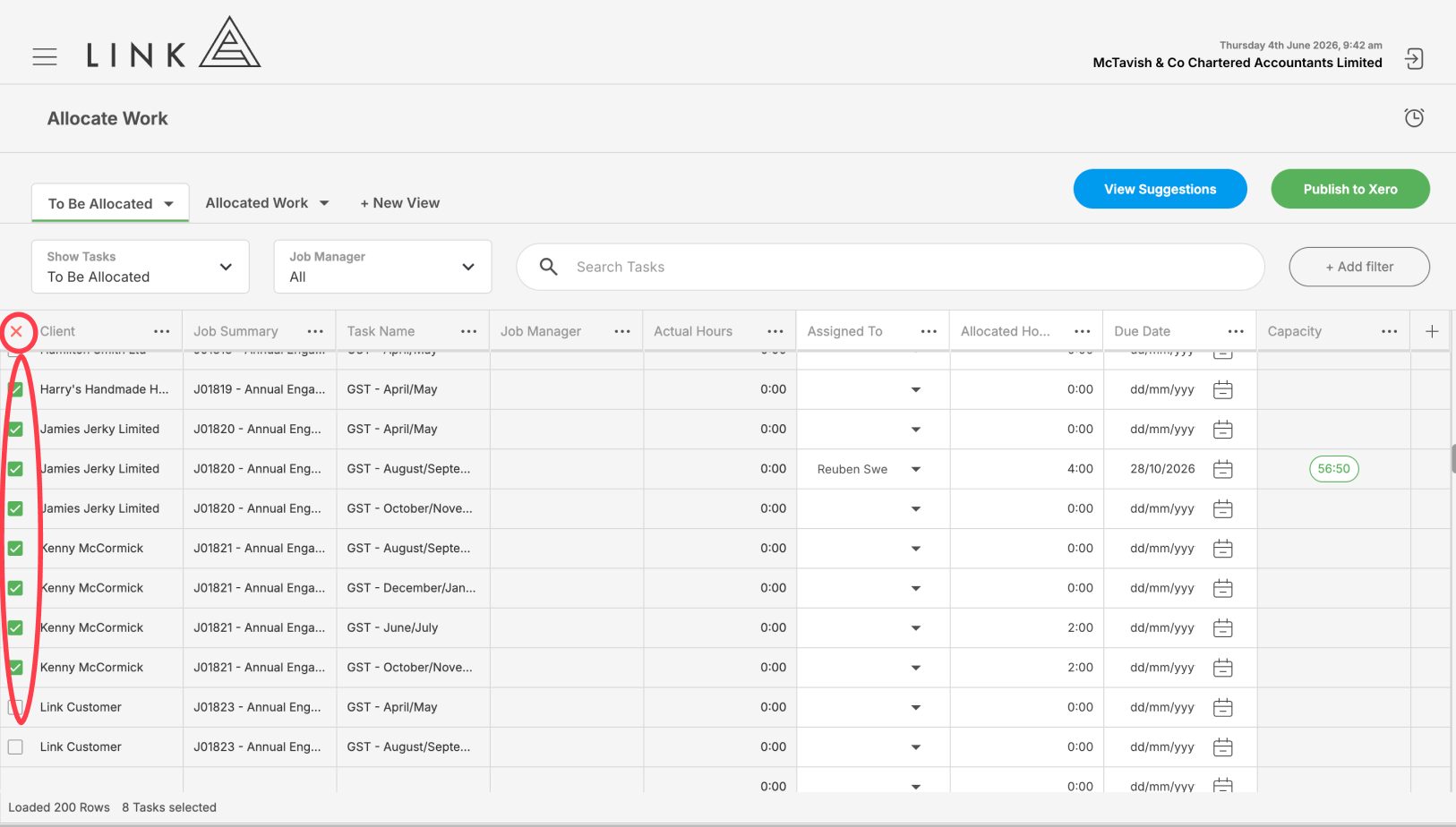
Multi-select allows you to bulk edit tasks. There is no ‘select all’ option due to the volume of records that could exist on a page at any one time. Instead, you can hold the shift key on your keyboard for selecting large groups of tasks. To do this, make your first selection by checking the box, then scroll down and select the last item in your chosen list while holding down the shift key. This will select all the items between your two selections.
Once you’ve made your selection and made your bulk updates, use the crossmark at the top of the table to unselect all your checkboxes.
View Suggestions
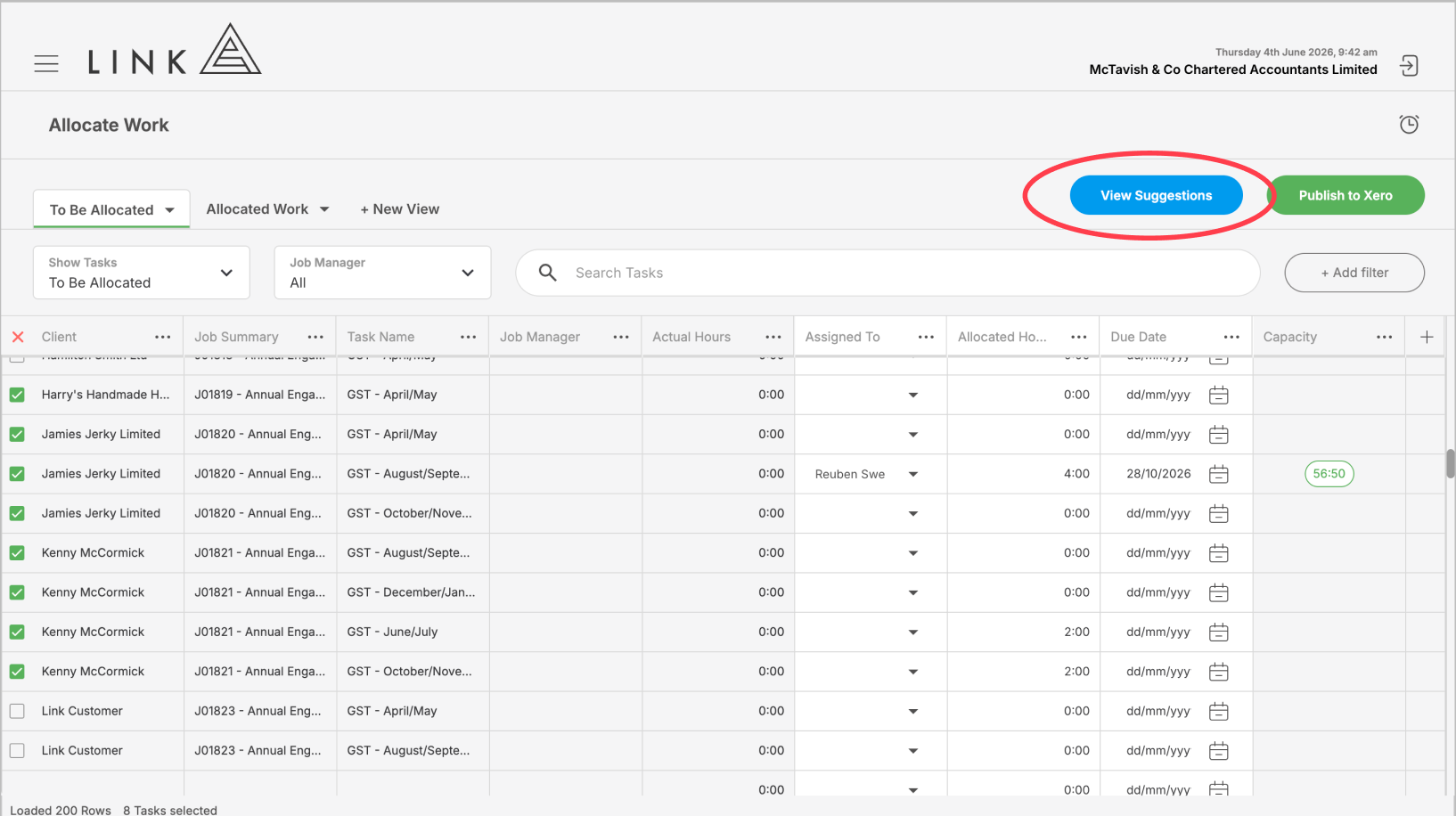
The View Suggestions feature helps you allocate work faster by using historical task data.
To use this feature, select one or more tasks using multi-select . Once tasks have been selected, the View Suggestions button will become active. When you click this button, a drawer will open showing suggested allocations for each selected task.
Link creates these suggestions by looking at the most recently completed task with the same task name for the same client. It then uses this history to pre-populate the allocation with who completed the task, when it was completed, and how long it took.
These suggestions are designed to give you a helpful starting point, but they can still be updated before publishing. You can change the assigned team member, due date, or allocated hours if required.
Once you are happy with the suggested allocations, click Publish to Xero to send the updates to Xero Practice Manager.
Publish to Xero
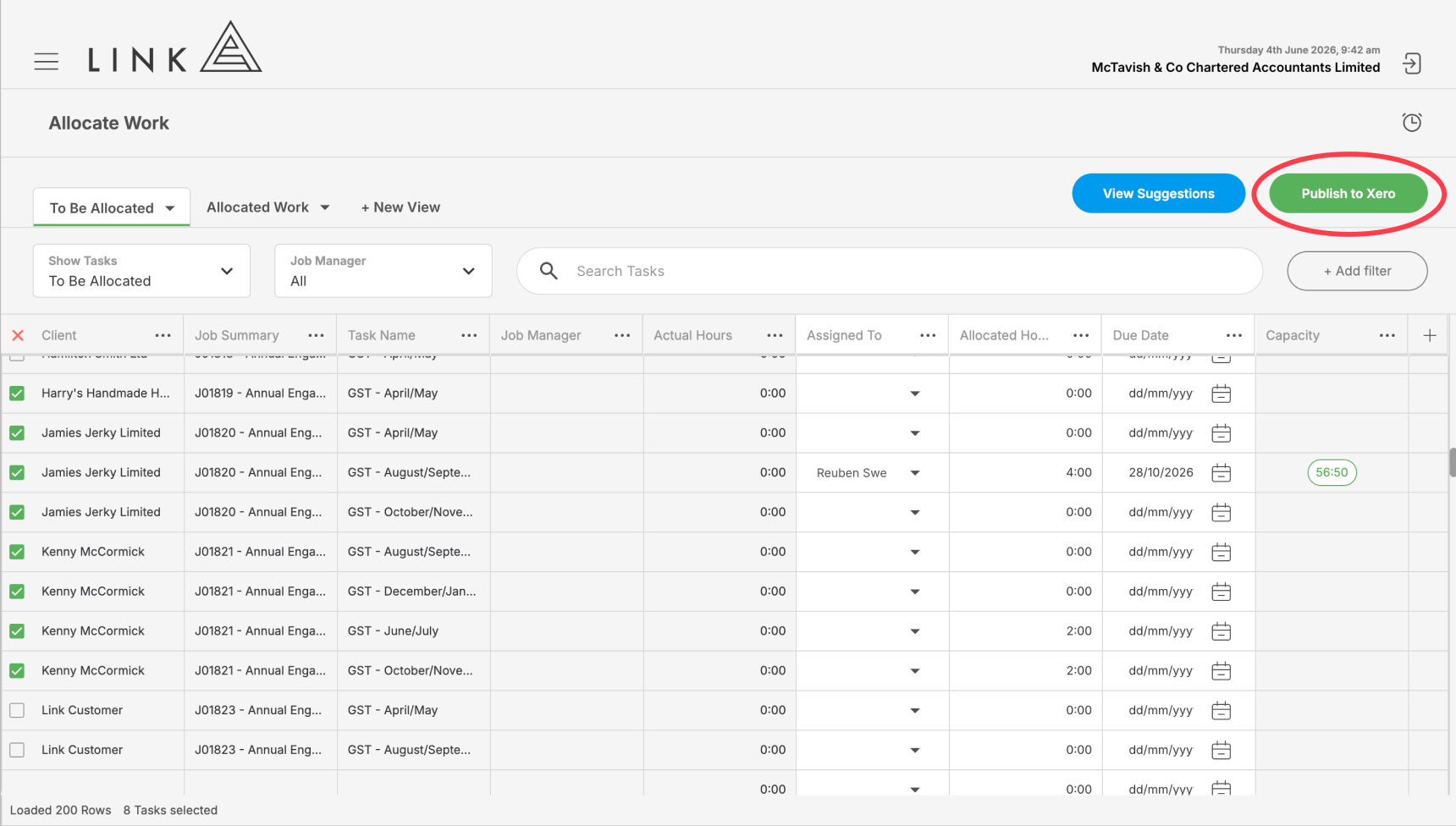
The ‘Publish to Xero’ button will be inactive when you first visit the page. Once a change that requires a publish is made, the button will be activated and appear green. Changes that require a publish are updates made to the ‘Due Date’ and ‘Assigned To’ fields. Once you have finished making all your desired changes, you can hit ‘Publish to Xero’ which will queue all the changes you have made to Xero Practice Manager, then the table will be refreshed with your updates.