Setting up your Xero Integration with Xero Practice Manager: Invoice Settings
Learn how invoice settings affect syncing, billing, and financial reporting.
Background
To set up your Xero integration settings for Xero Practice Manager go to Business>Settings>Xero. The area we are working with below are the invoice settings that determine the information sent from Xero Practice Manager to Xero.
Export As:
Export your invoices as drafts, as we may need to add information to those invoices in Xero prior to sending them to our customers. This is much easier to do on a Xero draft invoice.
Invoice Number Sequence:
Use the Xero numbering sequence, especially where you have fixed-price agreements or Xero repeating invoices set up. You want your XPM invoices to stay in time with this numbering sequence.
Include Invoice Description:
Including invoice descriptions from your XPM invoices through to your Xero draft invoices is optional. It is rarely used as we take our invoice descriptions either from the job description or from the tasks and costs that make up that job. If in doubt, tick this on and if you find yourself constantly removing these descriptions from your Xero invoices, then you can tick it off at any time.
Invoice details: Invoice format
There are three options here, none of which work for all scenarios, so you will have to select the option that causes you the least effort.
Option A: Job or miscellaneous invoice total
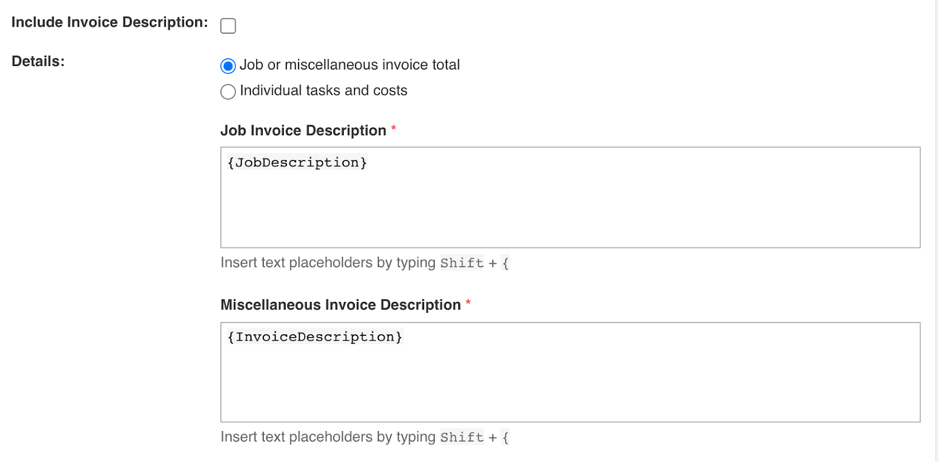
If you’d prefer to send a single-line invoice to your clients, select ‘Job or miscellaneous invoice total’. This will be a free-type description using the job description field which populates the Xero invoice with the text. This is the most commonly used option as it gives you the ability to write a paragraph description for the work completed. The downside of this method is if you want to break out the invoice into multiple lines, this will need to be done in Xero once the invoice is posted through. In this case, option B might be better for you.
Option B: Individual tasks and costs
This option sends to Xero all of the individual Task and Cost line items from your XPM to your Xero, including task descriptions and cost notes if you choose to. This provides more detail but ends up creating more work for you if you typically send a single-line or paragraph blurb describing your services. This is because you will have to edit the invoice in Xero to remove these itemised invoice lines. If this is you, option A might be better for you.